 Parendi
Features
Everything between a bank statement and an overview.
Parendi grew out of a spreadsheet that had got too big. What's here earned its place in that spreadsheet. Everything else was allowed to stay out.
Import
The file from your online banking is enough
camt.053 is the ISO 20022 account statement Swiss banks offer as XML. Parendi reads it with no preparation: you never hunt for a header row or map a column, because the account sits in the file as an IBAN.
CSV and Excel work just as well but need your help once. The app proposes the columns, you confirm, and from then on it knows that format. Credit card statements are recognised by their card number and type columns, even when the export starts with four lines of preamble.
- Drag and drop into the window, or File › Import
- You pick the target account in the preview, pre-filled with what the file suggests
- Before saving you see every row with its category and can correct it
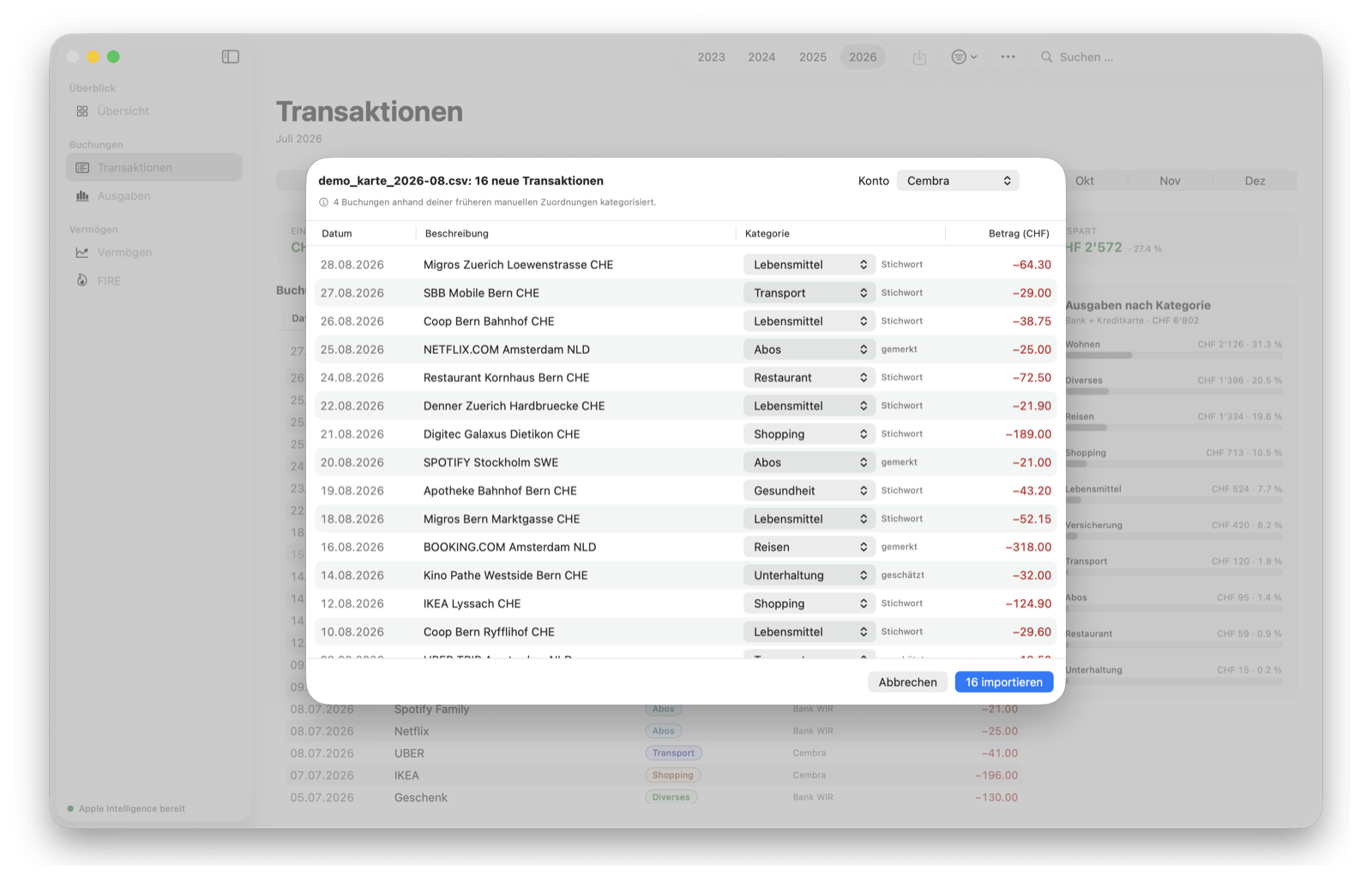
Importing twice is fine
Anything already in the database is skipped and reported. You can re-import the whole month when a transaction was posted late.
Credit cards count once
The card payment on your bank account and the line items on the statement are the same spending. The app treats the lump-sum charge as a transfer.
Several accounts
Each account is its own object with its own IBAN. Transfers between your own accounts are recognised by the IBAN in the text and don't count as spending.
When a file doesn't fit
The import halts and says what went wrong. From that same message you can send the file to the developer, as a redacted copy or as the original.
Categories
Four routes to a category, in a fixed order
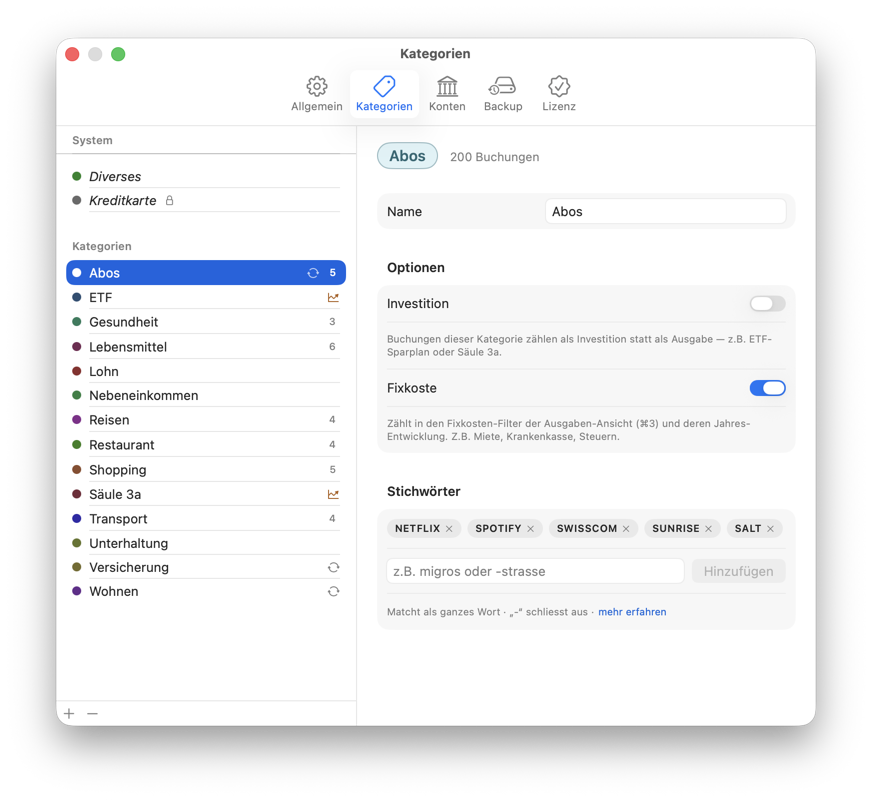
Memory first: if you have sorted this transaction by hand before, your decision stands. Then your keywords, then a category name found in the transaction text, and only then Apple Intelligence on your Mac.
Your manual correction therefore beats every rule and every guess. It holds until you change it yourself.
- Every row says which route decided it
- Keywords can be applied retroactively to older transactions
- A minus sign in front of a keyword excludes instead of includes
- A correction never turns into a rule on its own: what gets remembered is the single transaction
Starter categories per country
On first launch you pick your country and get categories, keywords and pension positions that fit it. All of it is editable.
Without Apple Intelligence
Importing works exactly the same. Whatever memory and keywords don't catch lands in the catch-all category and waits for you.
Investing isn't spending
Categories like brokerage or pension count as investments. They don't lower your savings rate, because money invested is money saved.
Overview
A year on one screen
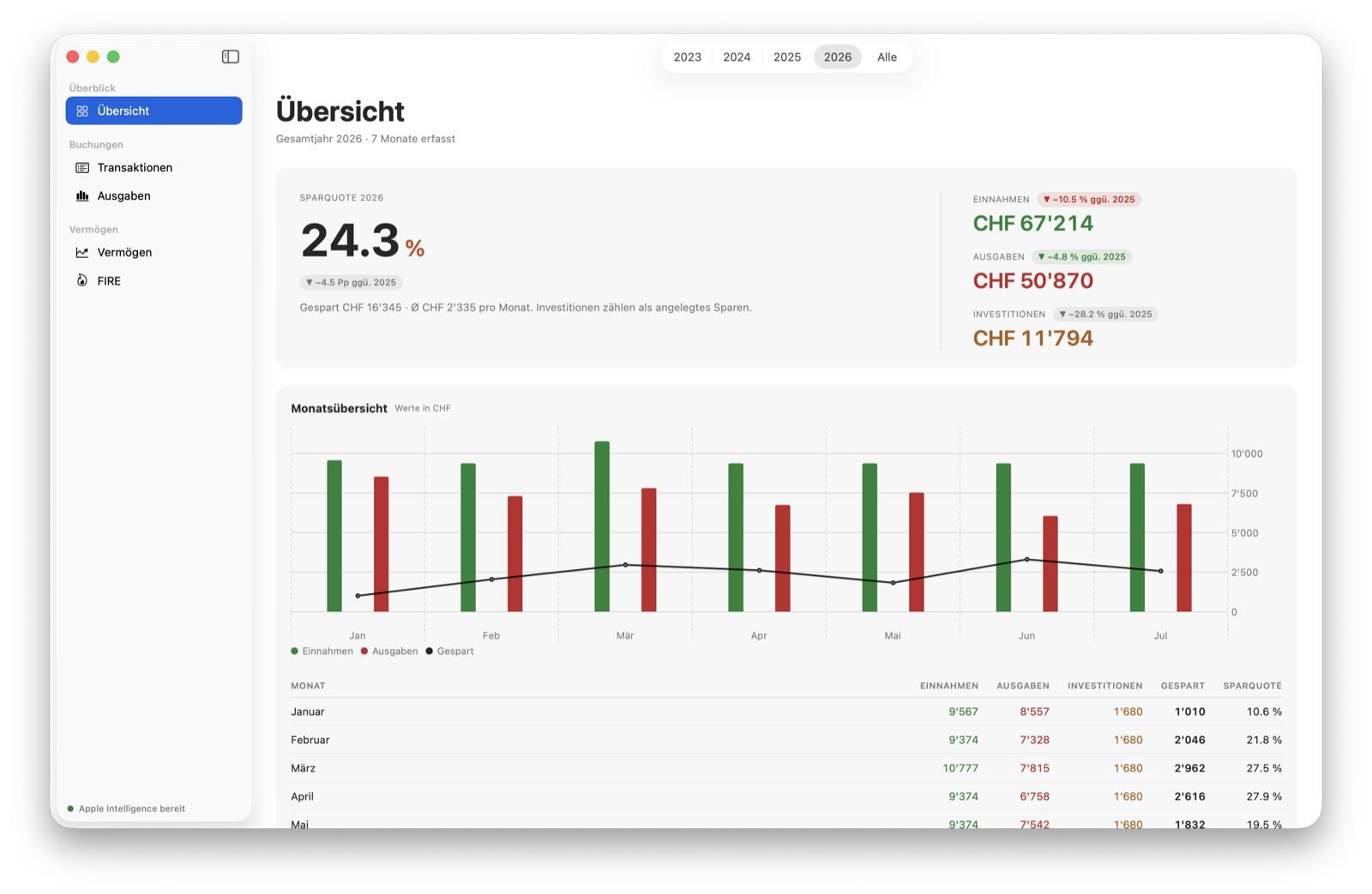
Savings rate, income, spending and investments, each against last year. Below that the monthly trend as a chart and as a table, because the table gives you the numbers the chart only hints at.
Saved means income minus spending here. Investments are not subtracted. Transfers between your own accounts drop out in both directions, or every payment into your savings account would look like an expense.
- One year or all years, switchable in the title bar
- Every table copies to the clipboard with ⌘C
- Colours never change meaning: income green, spending red, investments orange
Spending and fixed costs
What comes back every month
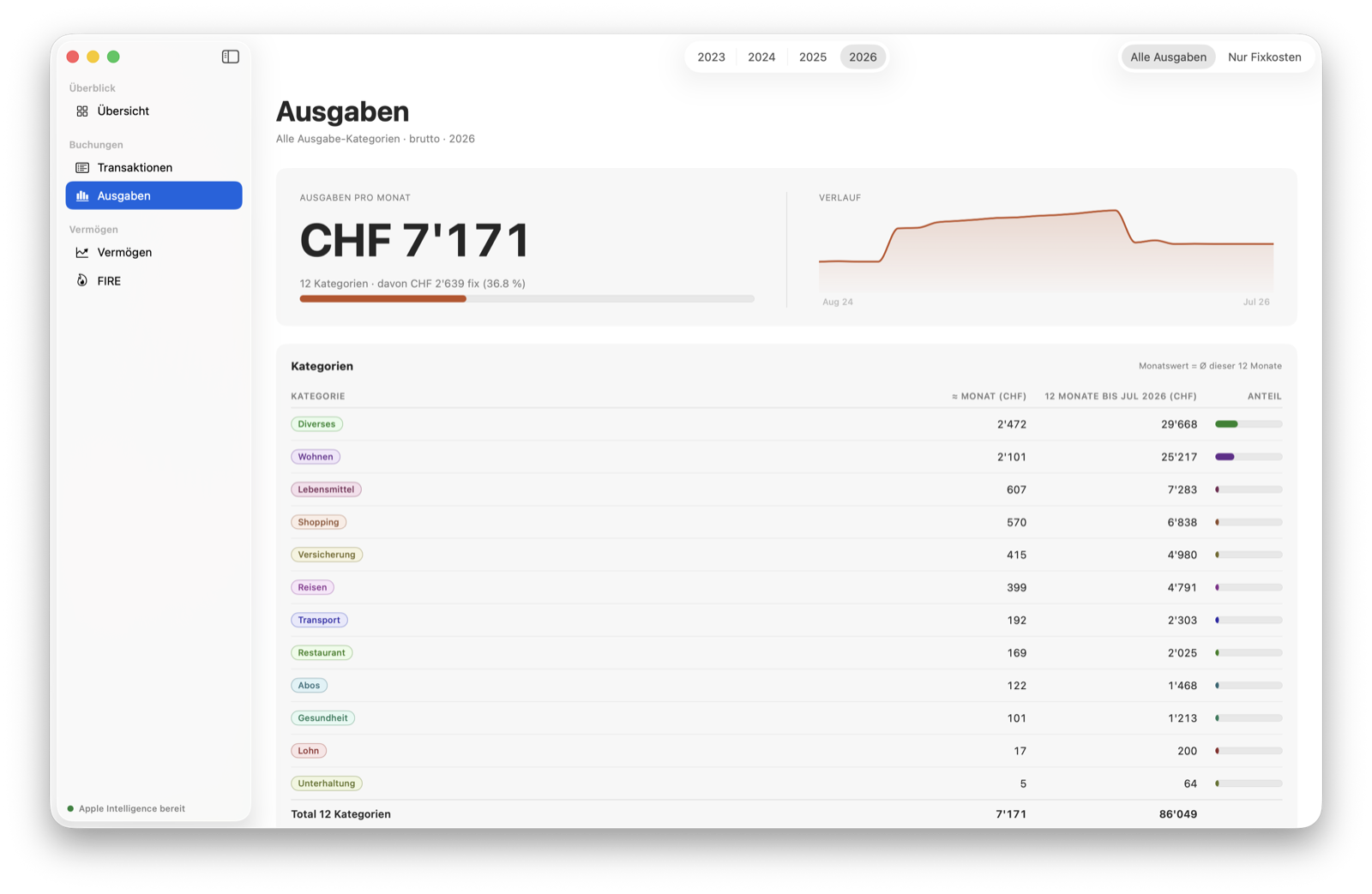
The spending view works out a monthly figure per category from the last twelve months. Two views, the same calculation: all categories, or only the ones you marked as fixed costs.
What counts as a fixed cost is your call. The app doesn't guess at it: whether your gym membership is fixed is something only you know.
- The trend shows whether a fixed cost has crept up over the months
- Jump from a category straight to the transactions behind it
- The fixed-cost total is the number the FIRE calculator works with
Net worth
Positions, not three fixed fields
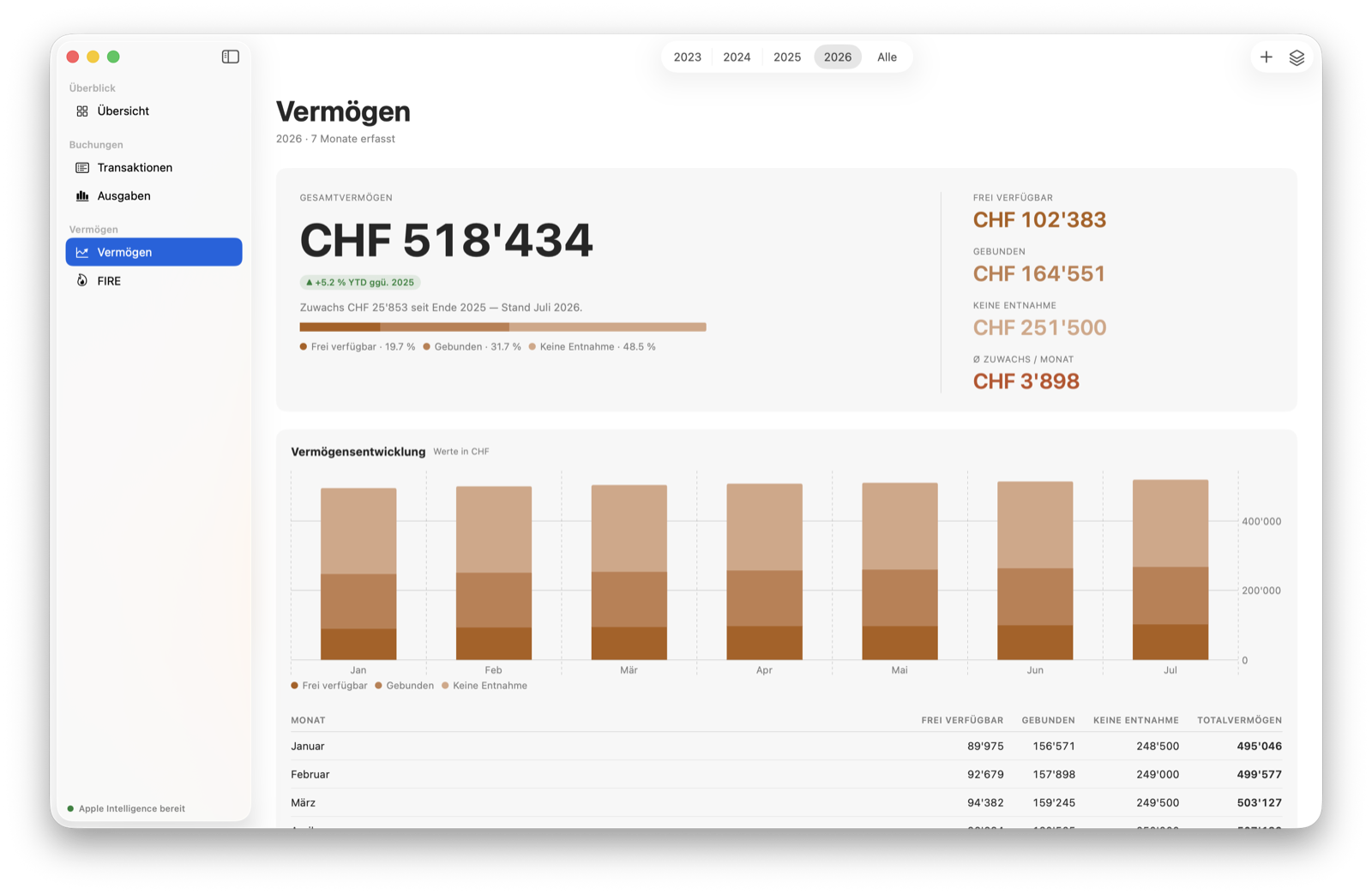
You create what you own: current account, brokerage account, pension, the house, the mortgage. Each position gets a monthly value, and the mortgage is allowed to be negative.
Every position has a kind, and the kind decides how it is counted: freely available, locked until retirement, or never withdrawable at all.
- History per month, stacked per year
- Positions can be archived without dropping their values out of history
- The house you live in counts towards net worth, never towards the FIRE number
FIRE
The calculator that already knows
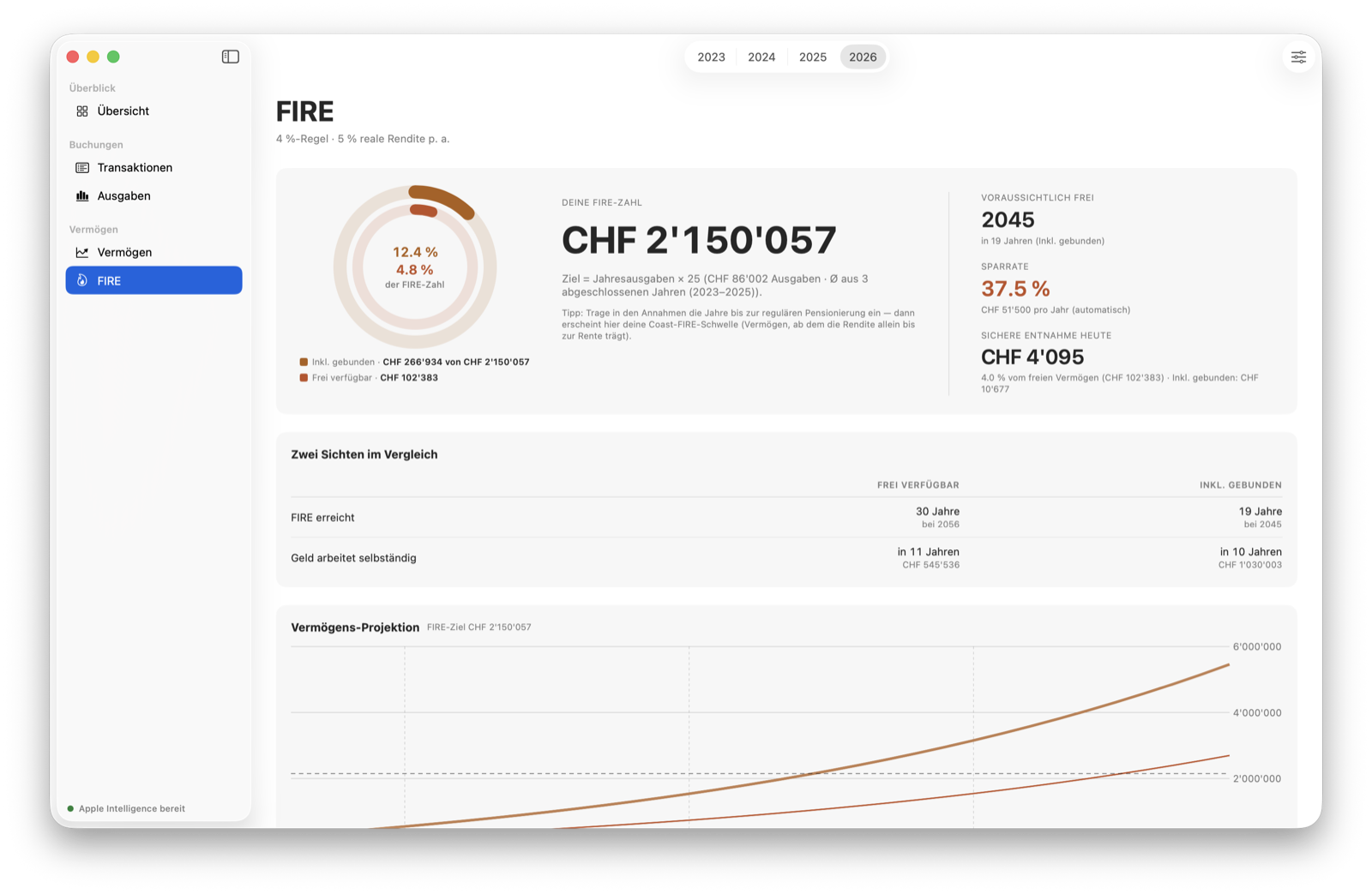
FIRE calculators on the web start by asking for your annual spending, your savings rate and your net worth. Parendi has all three already, from your transactions instead of your estimate.
What comes out is the point where your assets carry your spending. Everything in today's purchasing power, so the number means what it appears to mean. It stays a projection from assumptions you set yourself, and it is not financial advice.
- Two views: freely available assets only, or everything including pensions
- Return, inflation and withdrawal rate are yours to set
- Progress arrives as a year, not as a bar
Your data
One file, and it's yours
Everything lives in a SQLite database on your Mac. There is no account for it, nothing syncs and nothing is transmitted anywhere.
Backups where you want them
Once a day the app writes a backup to the folder you choose. iCloud Drive, an external disk, whatever you prefer. ⌘B any time you want one now.
Sensible retention
The last 30 days are kept in full, then one per month. Restoring happens from inside the app.
Moving to a new Mac
Restore a backup and you're done. No account holding your data, no activation that can go missing.
Undo, as everywhere else
⌘Z reverses changes, and the Edit menu names what is about to be undone.
Small things
The details that make the daily use
Light and dark
The app follows your system, with no setting of its own for it.
German and English
Switchable in settings, applied at the next launch.
CHF and EUR
The currency follows the country you pick on first launch.
Copying, as you'd expect
⌘C puts any table on the clipboard as tab-separated text, ready to paste into a spreadsheet.
Display names
A cryptic transaction line can be renamed. The original text stays visible and still counts for matching on the next import.
Manual entries
Cash and anything that appears on no statement goes in by hand.
Renaming accounts
A name is only a name. History follows, because transactions hang on the account and not on its label.
Keyboard
The app works through menu commands rather than hidden gestures. Anything with a shortcut shows it in the menu.
Try it for 30 days
The trial starts at your first import, not at installation. Nobody loses two weeks to a busy fortnight.
